Quickstart: Exploring The Sunshine Data Set#
This post offers a brief guide to exploring the NI4AI Sunshine PMU data set using PredictiveGrid.
PART 1: Getting Started#
1. Install Google Collab Chrome Add-On and access the NI4AI Google Collab Workspace.
Installing Google Collab is the fastest way to get started using NI4AI data. Alternatively, more instructions for exploring the data is available in Pt. 2 of this post. Google Colaboratory, or “Colab” for short, is a product from Google Research. Colab allows anybody to write and execute arbitrary python code through the browser, and is especially well suited to machine learning, data analysis and education.
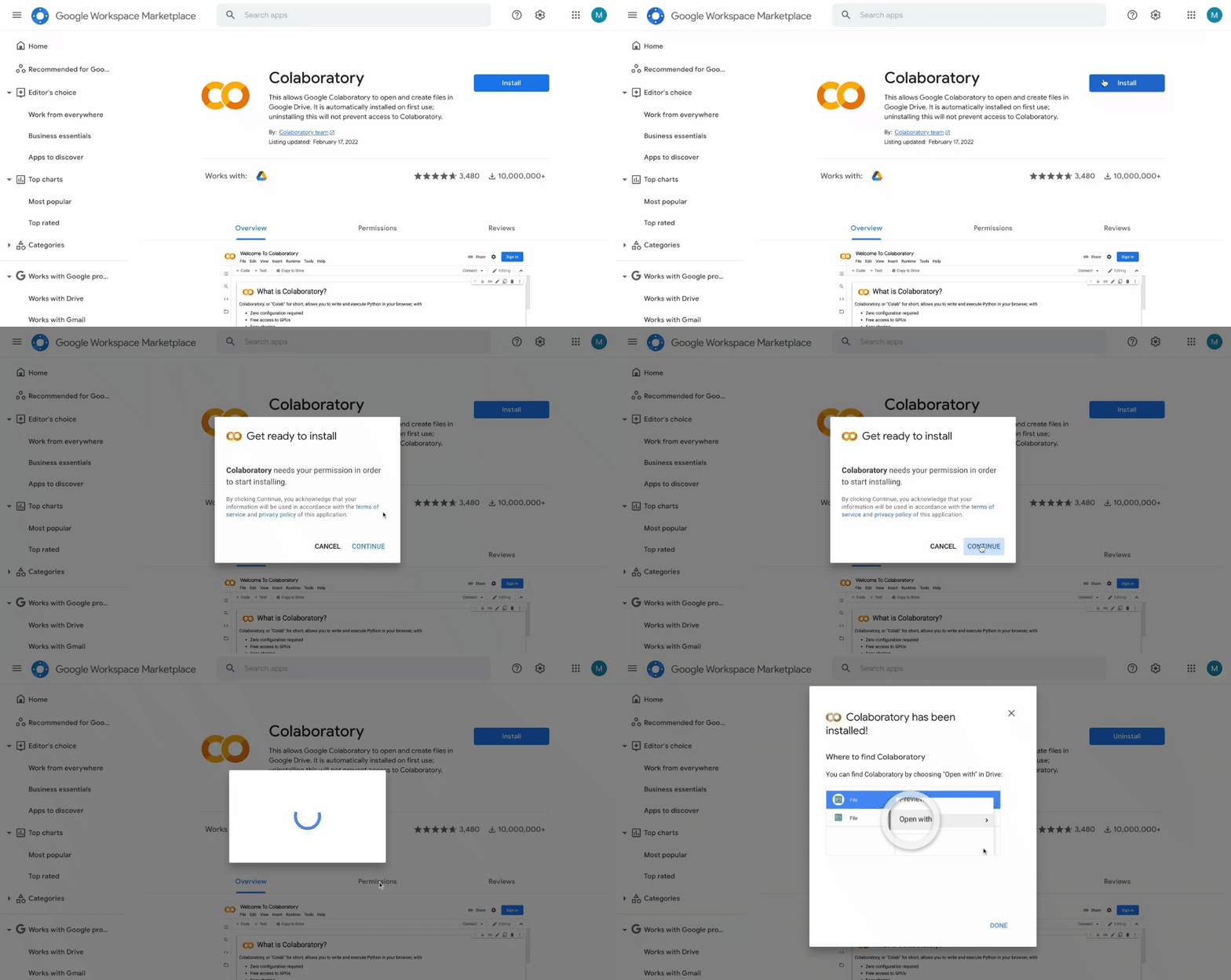
The Google Colab workspace extension can Be downloaded here.
2. Access the NI4AI Google Colab Workspace, pre-filled with everything you need to get started.
The workspace can be accessed here.
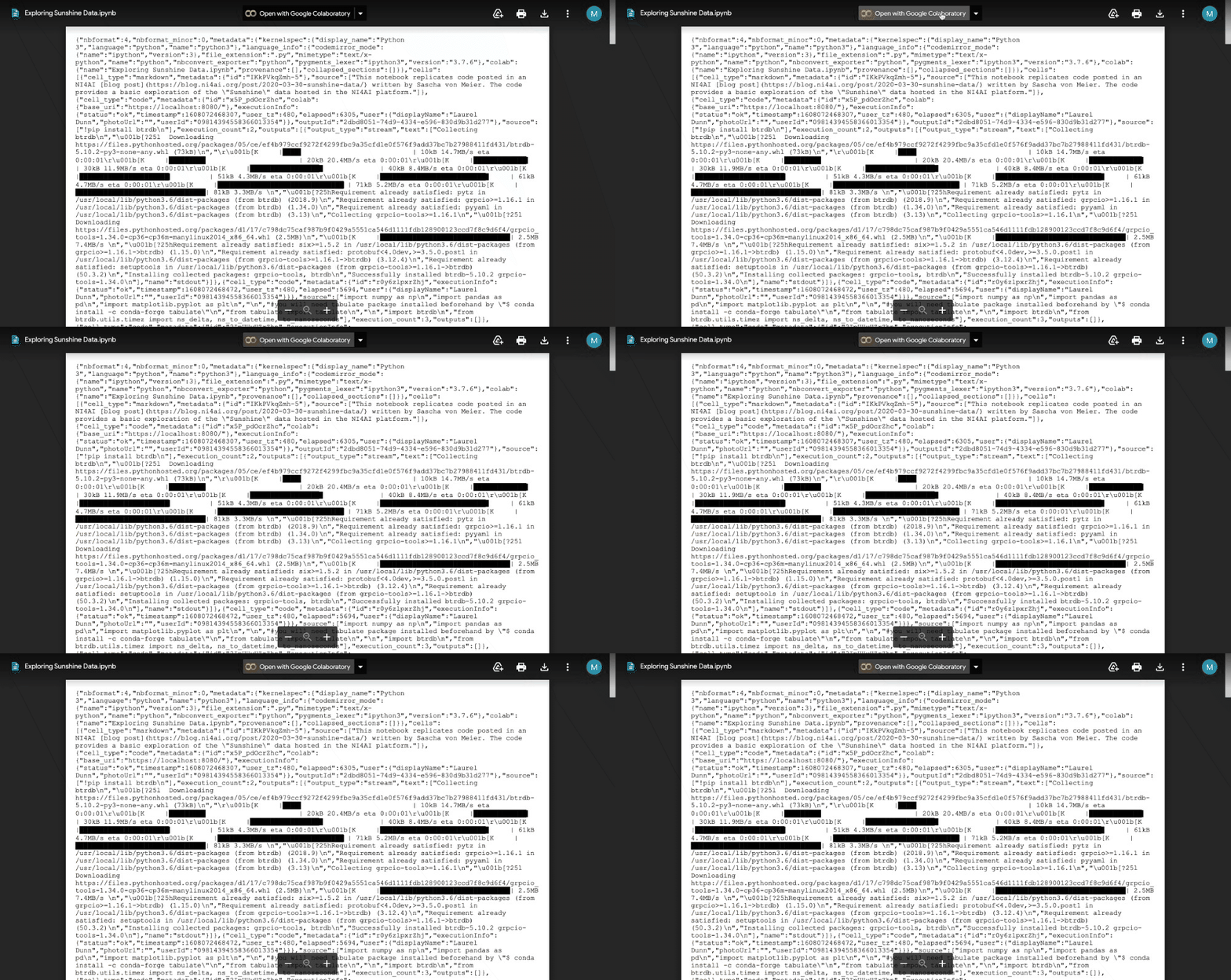
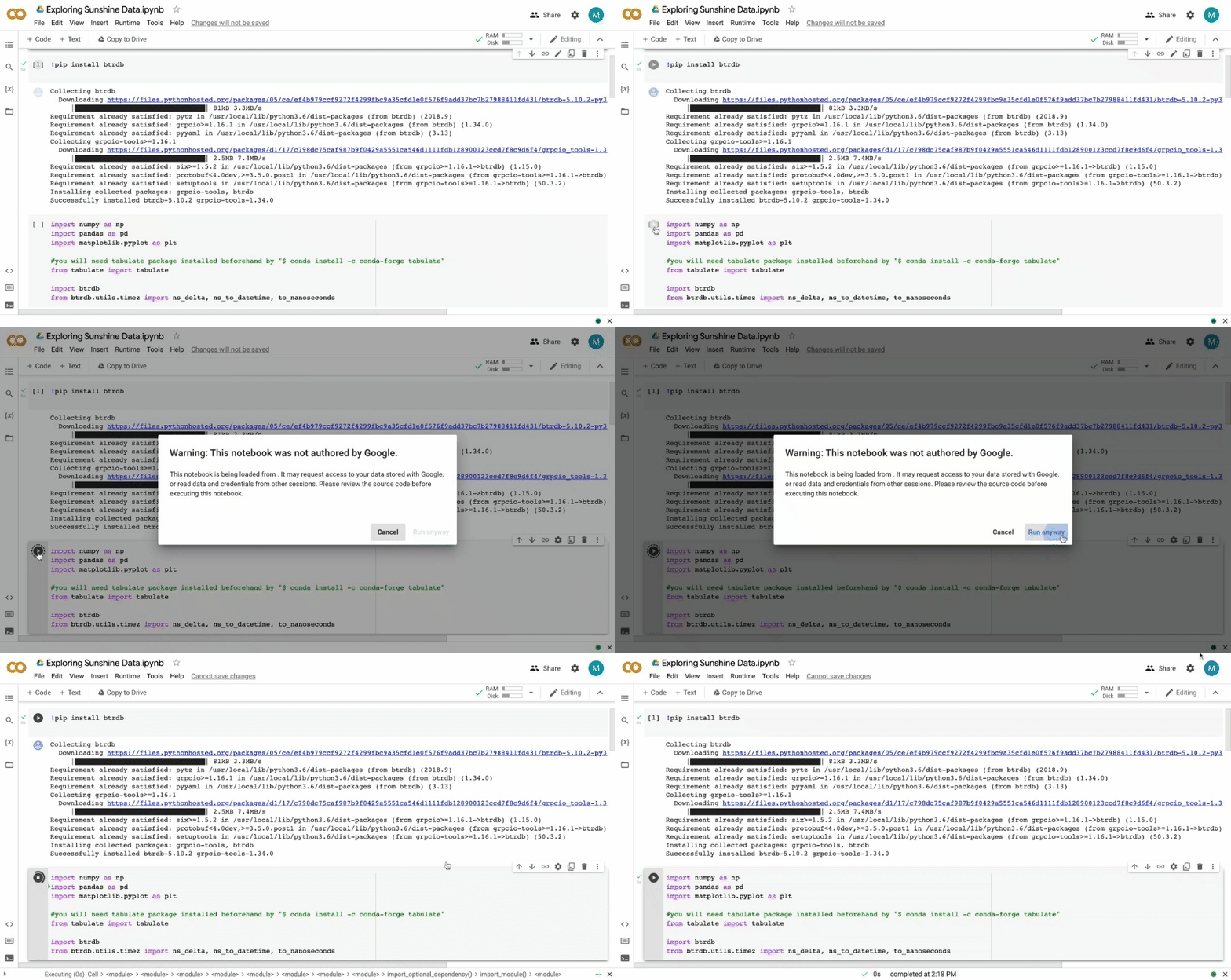
3. Install BtrDB and import the libraries needed to explore the data. Since this code is already in the Colab space, it is ready to run. Alternatively, manual instructions will follow below.
Install Better DB (BtrDB) python package, the backbone of PredictiveGrid, import other needed packages, and run code. This helps us do things like easily convert timestamps to nanoseconds.
4. Retrieve your API key and replace the placeholder text in google Colab from your NI4AI profile.
Head to NI4Ai.org/profile to grab your API Key. Don’t forget to create a free account if you have not done so already.


Now, copy and paste this API key into Google Colab, replacing placeholder text. With your API key, you can now access all of the public datasets available on the platform!
Finally, follow along the instructions in Google Colab to explore the Sunshine Data Stream. Alternatively, we provide a walkthrough below exploring the Sunshine Data stet.
PART 2: Exploring The Sunshine Dataset#
Our mission is to make it easier than ever to explore our datasets. Everything below is available in Google Colab, but we will also walk you through the process below to run on your own.
Viewing the Collection Data streams are organized into a hierarchichal tree of collections, so we can view the collections available for the Sunshine dataset using the list_collections method.
This will return the following:
[
'sunshine/PMU1',
'sunshine/PMU2',
'sunshine/PMU3',
'sunshine/PMU4',
'sunshine/PMU5',
'sunshine/PMU6']
Next, the following code would return the steams associated with PMU3:
streams = db.streams_in_collection('sunshine/PMU3')

streams
This will return the following:
       [<Stream collection=sunshine/PMU3 name=C3ANG>,

       <Stream collection=sunshine/PMU3 name=C2ANG>,

       <Stream collection=sunshine/PMU3 name=C3MAG>,

       <Stream collection=sunshine/PMU3 name=L1ANG>,

       <Stream collection=sunshine/PMU3 name=C2MAG>,

       <Stream collection=sunshine/PMU3 name=C1ANG>,

       <Stream collection=sunshine/PMU3 name=L2ANG>,

       <Stream collection=sunshine/PMU3 name=L1MAG>,

       <Stream collection=sunshine/PMU3 name=C1MAG>,

       <Stream collection=sunshine/PMU3 name=L3ANG>,

       <Stream collection=sunshine/PMU3 name=L2MAG>,

       <Stream collection=sunshine/PMU3 name=L3MAG>,

       <Stream collection=sunshine/PMU3 name=LSTATE>]
Additionally, exploring the stream in greater detail can be done in the following manner:
def  describe_streams(streams):

table = [["Index", "Collection", "Name", "Units", "UUID"]]

for idx, stream in  enumerate(streams):

tags = stream.tags()

table.append([

idx, stream.collection, stream.name, tags["unit"], stream.uuid

])

return tabulate(table, headers="firstrow")

print(describe_streams(streams))

Index Collection Name Units UUID
Retrieving this stream data returns the following details on the connection:
0 sunshine/PMU3 C3ANG deg b3ca2159-8fa7-4341-801d-d1228af675b7

1 sunshine/PMU3 C2ANG deg c71f34d1-3cba-4959-b4b9-032ec078c66d

2 sunshine/PMU3 C3MAG amps cd6d2be2-6b7b-4c46-be1e-8432990ef23c

3 sunshine/PMU3 L1ANG deg bc73226c-c877-438a-ab37-7a6703cbfbce

4 sunshine/PMU3 C2MAG amps 47da9f9a-f8d9-4955-9e87-9c17dabde298

5 sunshine/PMU3 C1ANG deg bc9d458c-9b54-4ad2-b837-53170a4d7331

6 sunshine/PMU3 L2ANG deg f4b400e1-26f4-4ca9-b301-c2fbb7d77e87

7 sunshine/PMU3 L1MAG volts 0295f80f-6776-4384-b563-4582f7256600

8 sunshine/PMU3 C1MAG amps 1e641edc-d95a-494f-99f3-cbb991ef05bf

9 sunshine/PMU3 L3ANG deg fabd1511-f6f8-4670-b336-7fbfe412e4a2

10 sunshine/PMU3 L2MAG volts 38d62795-6341-4069-96d3-fe74bffcac67

11 sunshine/PMU3 L3MAG volts 37539589-88aa-48b7-8cb4-1ea2f32c9e8d

12 sunshine/PMU3 LSTATE mask b50e8372-6a6e-405a-a366-832f4c9b98f0

#Choose a time window

start = to_nanoseconds('2015-08-15 3:42:00')

end = to_nanoseconds('2015-08-15 3:47:00')
Finally, we can retrieve values from stream 7. In this case, this returns current magnitude for PMU 3.
s = streams[7]

data = s.values(start, end)

data[:2]
This will return the following individual stream data:
[(RawPoint(1439610120008333000, 7301.33935546875), 123466),

(RawPoint(1439610120016666000, 7301.66796875), 123466)]
Just like that, PingThings makes it easy query steam data at lightning speed!